
View All Hardware
See every component connected to your PC in one organized list, from your audio chip to your graphics card.
Independent Driver Information Hub
An independent, vendor-neutral Windows driver reference library. Find careful troubleshooting steps, explore detailed hardware guides, and learn how to make informed maintenance decisions using built-in tools.
Vendor-neutral Free access No signup
0
Editorial Guides
0
Driver Categories Explained
0
Troubleshooting Topics
0
Driver Files Hosted
Driver Control Panel
The built-in Windows Device Manager is a useful place to identify hardware, inspect device status, and review available driver actions before considering another tool.
See every component connected to your PC in one organized list, from your audio chip to your graphics card.
Search for an available driver update or, when Windows offers the option, return to the previous version if a recent change caused problems.
A warning icon or status message can help narrow the investigation to a device, although similar symptoms may still have other causes.
Problem-first help
Start with careful checks for eight common Windows hardware symptoms. Each walkthrough covers driver and non-driver possibilities, and results vary with the underlying cause.

Speakers or headphones silent after an update? Check the device, services, settings, and driver.

Dropping connection or no networks showing? Check the adapter, settings, and driver status.

Windows says offline but the printer is on? Review the connection, queue, service, and driver.

“USB device not recognized” popping up? Identify the device and work through reversible checks.

Flicker, black screens, or wrong resolution? Check settings, cables, hardware, and driver state.

Bluetooth toggle vanished from Windows? Check whether Windows detects the adapter and service.

Camera not working in Zoom or Teams? Review privacy, app access, device state, and drivers.

Cursor frozen or gestures unavailable? Check input settings, hardware state, and driver status.
| Symptom You’re Seeing | Possible Driver Area | First Check | Start Here |
|---|---|---|---|
| No sound from speakers or headphones | Audio device | Output selection and Device Manager status | Start here |
| WiFi disconnects or no networks listed | Wireless network adapter | Airplane mode, adapter status, and router reachability | Start here |
| Printer shows “Offline” | Printer driver or print service | Power, connection, queue, and default printer | Start here |
| “USB device not recognized” popup | USB device or host controller | A different port, cable, and Device Manager status | Start here |
| Screen flicker, black screen, wrong resolution | Display or graphics adapter | Cable, display mode, and graphics status | Start here |
| Bluetooth toggle missing from Windows | Bluetooth adapter | Airplane mode, services, and adapter status | Start here |
| Camera black in a calling app | Webcam and privacy settings | Camera permission and another camera app | Start here |
| Touchpad frozen or gestures unavailable | Touchpad device | Keyboard shortcut, settings, and Device Manager | Start here |
| External monitor not detected | Display connection or graphics adapter | Input source, cable, and Detect display | Start here |
| Blue screen mentioning a .sys file | Varies by stop code and module | Record the exact stop code and file name | Decode errors |
Browse by driver type
Every piece of hardware in your computer — from the speakers to the WiFi chip — relies on a driver to talk to Windows. Pick a category to learn what that driver does, which one your PC uses, and how to keep it healthy.
Realtek, Conexant, Intel Smart Sound and every codec explained.
Audio guides
NVIDIA, AMD, and Intel graphics drivers demystified.
Display guides
Intel AX-series, Realtek, MediaTek wireless chips decoded.
Network guides
Ports, hubs, USB-C, and why devices go “unrecognized.”
USB guides
Pairing, audio lag, and the vanishing Bluetooth toggle.
Bluetooth guides
HP, Canon, Epson, Brother — and the print spooler explained.
Printer guides

The foundation drivers every PC needs first.
Chipset guides

NVMe, AHCI, Intel RST and missing-drive mysteries.
Storage guides
Integrated cameras, Windows Hello, and privacy switches.
Camera guides
Precision touchpads, function keys, and input fixes.
Input guides

UEFI, Secure Boot, and TPM in plain English.
Firmware guides

Xbox, PlayStation, and racing wheels on PC.
Controller guides
| Category | What It Controls | Common Names You’ll See in Device Manager | Most Common Problem | Full Guide |
|---|---|---|---|---|
| Audio & Sound | Speakers, mics, headphone jack | Realtek High Definition Audio, Intel Smart Sound | No sound after update | Full guide |
| Graphics & Display | Screen output, gaming, video | NVIDIA GeForce, AMD Radeon, Intel Iris Xe | Flicker / black screen | Full guide |
| Network & WiFi | Wireless internet | Intel Wi-Fi 6E AX211, Realtek RTL8852BE | Random disconnects | Full guide |
| Ethernet | Wired internet | Realtek PCIe GbE, Intel I226-V | “Unidentified network” | Full guide |
| Bluetooth | Wireless accessories | Intel Wireless Bluetooth, Realtek Bluetooth | Toggle disappears | Full guide |
| USB | Ports, hubs, USB-C | USB xHCI Host Controller | Device not recognized | Full guide |
| Printer | Printing & queues | HP/Canon/Epson/Brother print drivers | Printer shows offline | Full guide |
| Chipset | Motherboard foundation | Intel Chipset Device Software, AMD Chipset | Unknown devices listed | Full guide |
| Storage & SSD | Hard drives, NVMe SSDs | Standard NVMe Controller, Intel RST | Drive not detected | Full guide |
| Webcam & Camera | Video calls, Windows Hello | Integrated Camera, HP TrueVision | Black screen in apps | Full guide |
| Touchpad & Mouse | Laptop trackpad, gestures | Precision Touchpad, Synaptics, ELAN | Gestures stop working | Full guide |
| Keyboard | Typing, hotkeys, backlight | HID Keyboard Device | Keys not responding | Full guide |
| Monitor & Display | External screens, color | Generic PnP Monitor | 144Hz option missing | Full guide |
| Scanner | Document scanning | TWAIN / WIA scan drivers | Scanner not detected | Full guide |
| Card Reader | SD & microSD slots | Realtek Card Reader | SD card not showing | Full guide |
| BIOS & Firmware | Pre-Windows startup | UEFI firmware, TPM 2.0 | Update anxiety | Full guide |
| Modem & Cellular | 4G/5G laptop modems | WWAN / Mobile Broadband | Cellular option missing | Full guide |
| Virtual Machine | VMware, VirtualBox, Hyper-V | VMware Tools, Guest Additions | Screen/network in VM | Full guide |
| Game Controllers | Gamepads, wheels | Xbox Wireless, DualSense | Detected but ignored in game | Full guide |
| Driver Management | Updates & rollbacks | Windows Update, Device Manager | Knowing when to update | Full guide |
How it works
A symptom can come from settings, services, cables, hardware, or a driver. Our problem-first guides help you confirm the affected device and narrow the likely causes, even if you have never opened Device Manager.
The guides explain checks using tools already on your PC, including Windows Update, Device Manager, and built-in troubleshooters. Steps are numbered, screenshots are described in plain English, and higher-risk actions include warnings.
Learn when to update, when to leave a working driver alone, and how to roll back safely if an update goes wrong. These practices can reduce avoidable changes, but outcomes vary by device and cause.
| Built-In Tool | Where to Find It | Best For | Difficulty | Our Guide |
|---|---|---|---|---|
| Windows Update | Settings → Windows Update → Optional updates | Getting manufacturer-tested driver updates automatically | Easiest | Our guide |
| Device Manager | Right-click Start → Device Manager | Updating, rolling back, or reinstalling one specific driver | Easy | Our guide |
| Built-in Troubleshooters | Settings → System → Troubleshoot | Checking common audio, network, and printer conditions | Easiest | Our guide |
| Driver Rollback | Device Manager → device → Properties → Driver tab | Undoing an update that broke something | Easy | Our guide |
| Safe Mode | Settings → Recovery → Advanced startup | Fixing a driver so broken Windows won’t start normally | Moderate | Our guide |
Error decoder
Windows error codes have defined meanings, but their causes and appropriate next steps can vary. These guides explain several commonly reported driver-related errors:
Code 10
“This device cannot start”
Code 43
“Windows has stopped this device”
Code 28
“The drivers for this device are not installed”
VIDEO_TDR_FAILURE
The graphics blue screen, explained
DRIVER_POWER_STATE_FAILURE
Sleep/wake blue screen guidance
“No Audio Output Device Is Installed”
The classic silent-PC error
| Error / Code | Where You See It | What It Means in Plain English | Fixable at Home? | Decoder |
|---|---|---|---|---|
| Code 10 | Device Manager | The device can’t start — usually a corrupted or wrong driver | Yes, usually | Decoder |
| Code 43 | Device Manager | Windows shut the device down because it misbehaved | Yes, usually | Decoder |
| Code 28 | Device Manager | No driver is installed for this device at all | Yes, easily | Decoder |
| Code 31 | Device Manager | Windows can’t load the driver this device needs | Yes, usually | Decoder |
| Code 45 | Device Manager | Windows thinks the device isn’t connected | Yes, easily | Decoder |
| VIDEO_TDR_FAILURE | Blue screen | Your graphics driver stopped responding | Yes, usually | Decoder |
| DRIVER_POWER_STATE_FAILURE | Blue screen | A driver failed during sleep or wake | Yes, usually | Decoder |
| DRIVER_IRQL_NOT_LESS_OR_EQUAL | Blue screen | A driver touched memory it shouldn’t have | Usually | Decoder |
| “No Audio Output Device Is Installed” | Taskbar / sound icon | Windows can’t see your audio driver | Yes, easily | Decoder |
| “USB Device Descriptor Failed” | Device Manager / popup | The USB port and device failed their handshake | Yes, usually | Decoder |
Featured guidance
The most popular tutorials on DriverHub US this month.

A careful method using Windows Update and Device Manager, with checks to make before using any manual package.

A concise explanation of what drivers do, how compatibility problems happen, and what to inspect first.

Learn when Windows offers Roll Back Driver, what the button changes, and what to try when it is unavailable.

We examine common “driver booster” claims and compare them with the update paths already built into Windows.
Our promise
DriverHub US does not distribute driver files or updater utilities. We explain how to use built-in Windows tools and how to identify an official support page for the exact device model.
Every link on this site goes to another page on this site. No affiliate links, no sponsored “recommended tools,” no bait-and-switch.
Published guidance follows a review checklist for clarity, reversibility, sourcing, and conflicts of interest. See the policy and correction process.
Articles display a review date so readers can judge recency. Guidance is revised when a documented product change or correction requires it.
| Source | Guidance | Why |
|---|---|---|
| Windows Update | Preferred starting point | Uses the Windows update catalog and keeps the update path inside Windows |
| Device Manager (automatic search) | Preferred built-in path | Searches through Windows-managed driver sources for the selected device |
| Your PC maker’s official support site | Use after matching the exact model | PC makers may publish packages customized for a specific system |
| The component maker’s official site | Use with PC-maker guidance in mind | Component packages may be newer, while PC-maker versions may include device-specific changes |
| Third-party “driver download” websites | Avoid unverified portals | Packages may be altered, outdated, mismatched, or bundled with unrelated software |
| “Driver updater / booster” apps | Usually unnecessary | They add another software layer and may recommend changes that Windows does not require |
| Random forum links and file-sharing sites | Do not install from them | The publisher, integrity, and intended hardware may be impossible to verify |
Understand what drivers do, why problems happen, and which careful Windows tools to check first.
01 · Understand
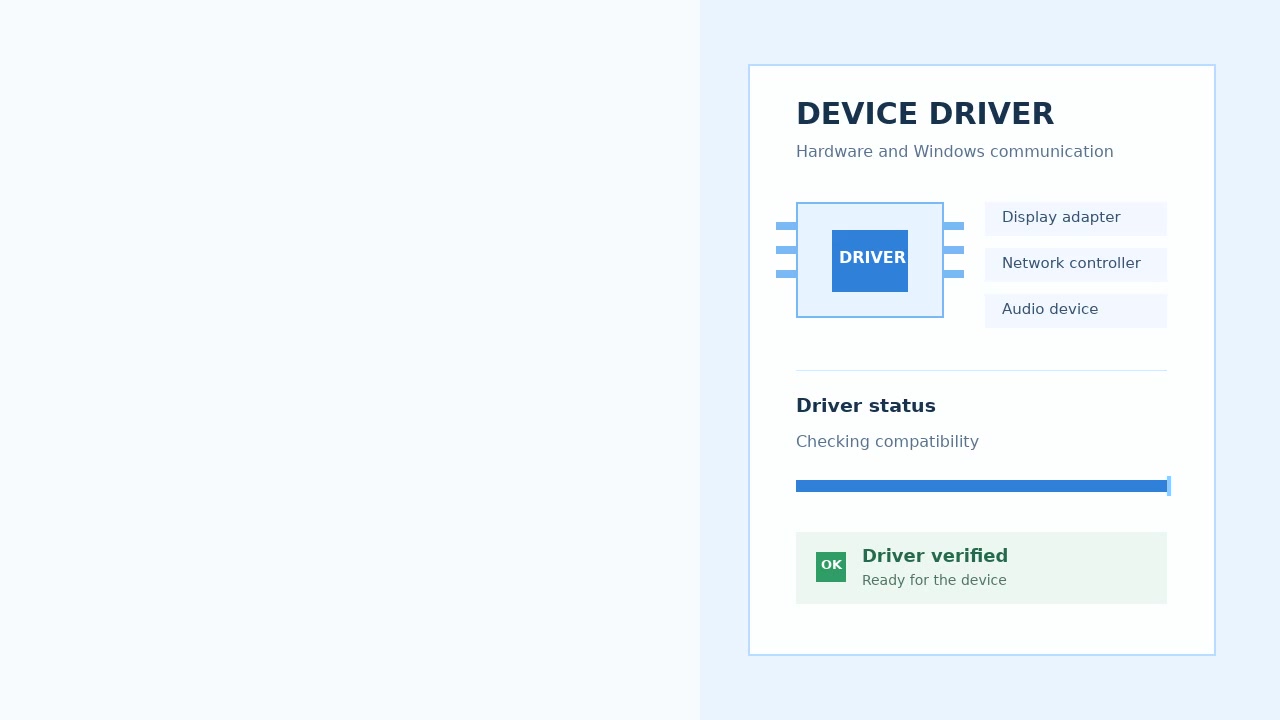
Drivers sit between your hardware and Windows, translating instructions in both directions. A Windows update and a device-specific driver can occasionally become incompatible. A driver file can also be damaged by an interrupted update, storage trouble, or an incomplete installation.
Similar symptoms can have different causes. Identify the exact device, note its Device Manager status, and make one reversible change at a time.
02 · Check safely
Start with built-in Windows tools rather than an unverified updater download. Windows Update may offer a driver through the Microsoft update catalog. Device Manager lets you inspect status, search for an update, uninstall a device, or use Roll Back Driver when Windows makes that option available.
Check Windows Update
Inspect Device Manager
Verify the official publisher
If Windows does not offer an appropriate package, use the official support page for the exact PC or device model. Read the complete driver update guide.
Windows support reference
Support status as of August 2026. DriverHub US focuses on Windows 11 and Windows 10.
| Windows Version | Microsoft Support | Windows Update Drivers | What US Users Should Know |
|---|---|---|---|
| Windows 11 (24H2/25H2) | Fully supported | Automatic + optional updates | Best driver experience; most new hardware targets it |
| Windows 11 (23H2 and older) | Check your edition | Available | Update to the latest version for newest drivers |
| Windows 10 (22H2) | Extended support only | Security-focused | New drivers are getting rare; plan your upgrade |
| Windows 8.1 | Ended Jan 2023 | No | New hardware generally won’t have drivers |
| Windows 7 | Ended Jan 2020 | No | Kept for reference only — modern drivers don’t exist |
If your hardware is working and no relevant security or compatibility update is recommended, a manual driver change may be unnecessary. A newer version is not automatically a better match for every PC.
Before changing a driver, review the available recovery paths in our rollback guide.
Our guides use examples from widely available PCs, printers, components, and network equipment. Company and product names identify compatibility examples only; DriverHub US is not affiliated with or endorsed by those companies.
Found something incomplete or out of date? Send a correction request.
Pick the symptom that matches your PC, confirm the affected device, and follow one reversible step at a time. DriverHub US provides information only and does not install software or offer personalized repair service.